Installation Steps

Follow these four steps to connect your console to the relay.

Step 1

Check Your Homebrew Setup

Your Wii U must be running the Aroma Homebrew Environment with Coldboot enabled.

Why Coldboot is Required

Coldboot starts Inkay when the console powers on so SpotPass services can connect properly. Older methods like Tiramisu or Haxchi are not supported.

Prerequisites

  • Wii U running Aroma with Coldboot enabled.
  • SD card reader or FTP connection to your console.
  • Pretendo Network ID (PNID).
Step 2

Download Inkay Switcher

Download the Inkay Switcher application to switch between server relays on your console.

Inkay Switcher (.wuhb)

Wii U Aroma Application

Download Release (.wuhb)
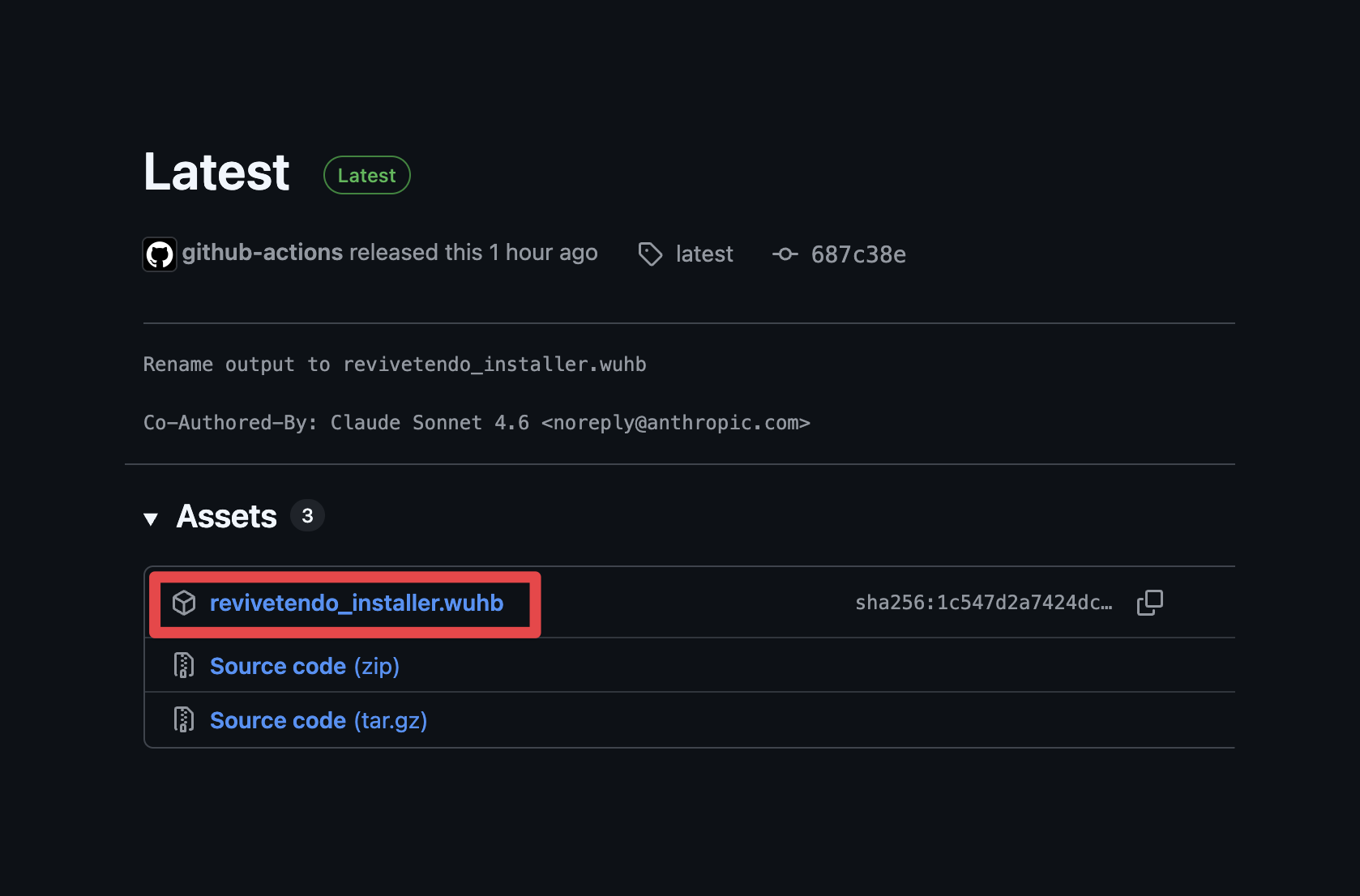
GitHub release showing revivetendo_installer.wuhb asset to download Download revivetendo_installer.wuhb from the Assets section on GitHub.

SD Card Placement

Copy revivetendo_installer.wuhb into the /wiiu/apps/ directory on your SD card:

Directory Path
sd:/wiiu/apps/revivetendo_installer.wuhb

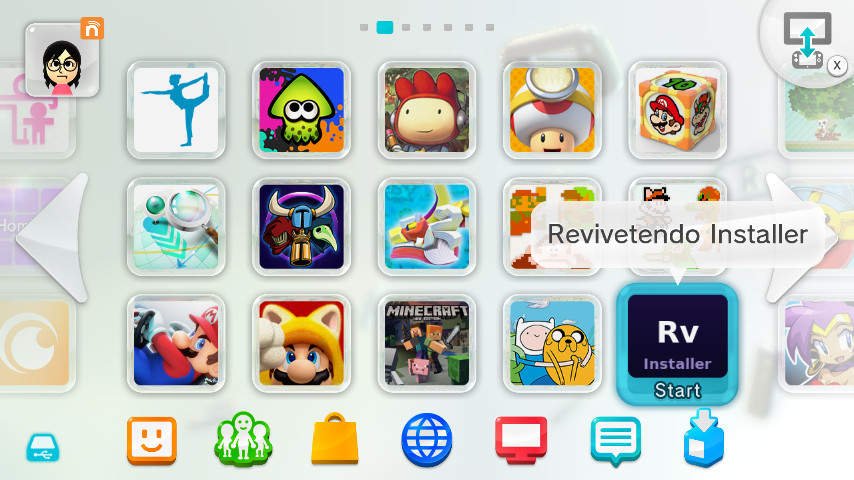
When you put the SD card back and start your Wii U, the Revivetendo Installer icon will appear on your HOME Menu.

Revivetendo Installer on Wii U HOME Menu Revivetendo Installer application tile (Rv Installer) on your Wii U HOME Menu.
Step 3

Install the Custom Relay

Configure your console to route Wii U Chat to Nico's server.

  1. Open Inkay Switcher: Launch Revivetendo Installer from your Wii U HOME Menu.
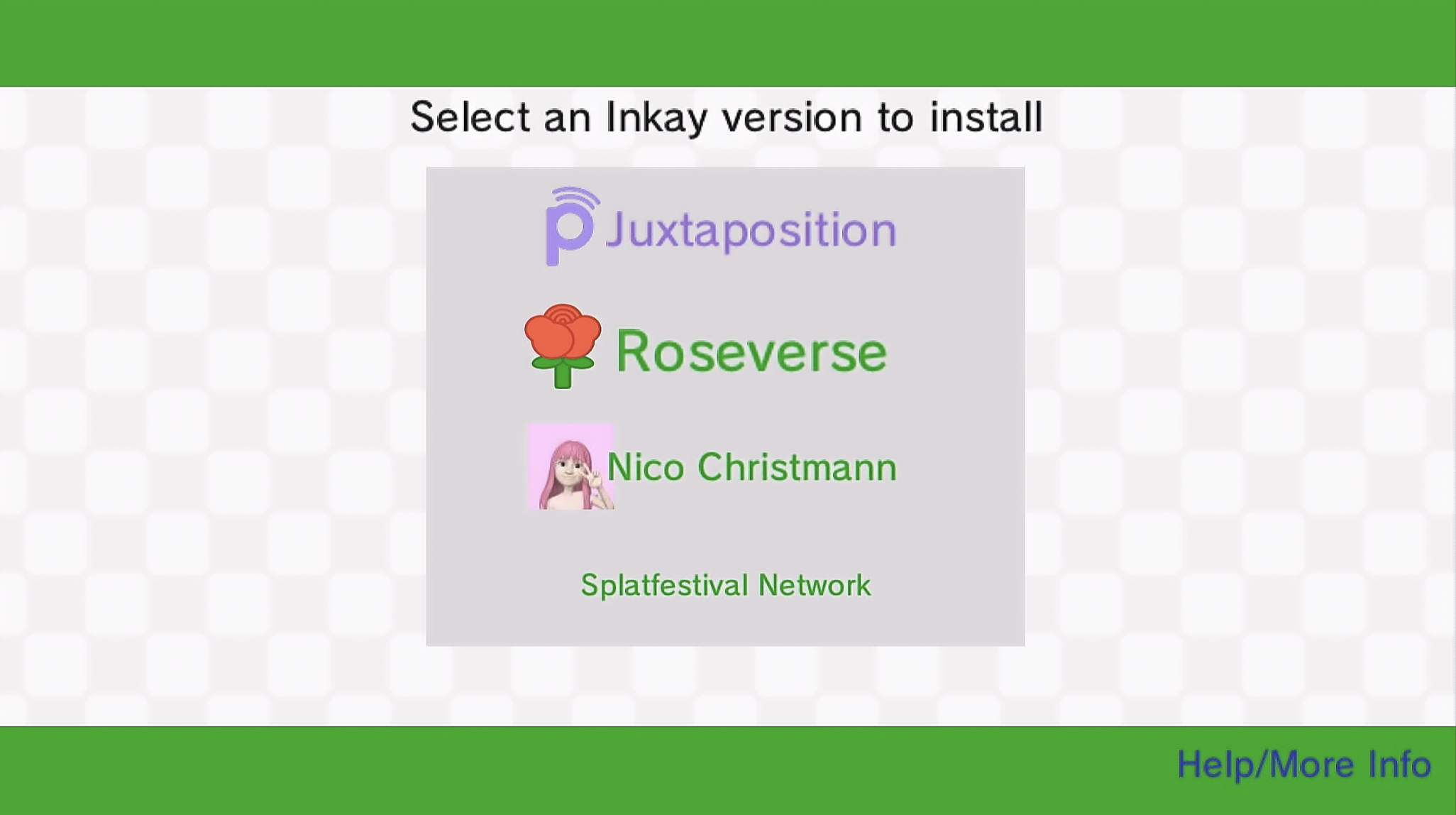
  2. Select Custom Relay: Choose Nico Christmann. (To return to standard Pretendo later, select Juxtaposition instead).
    Selecting Nico Christmann inside Inkay Switcher Select "Nico Christmann" from the switcher menu.
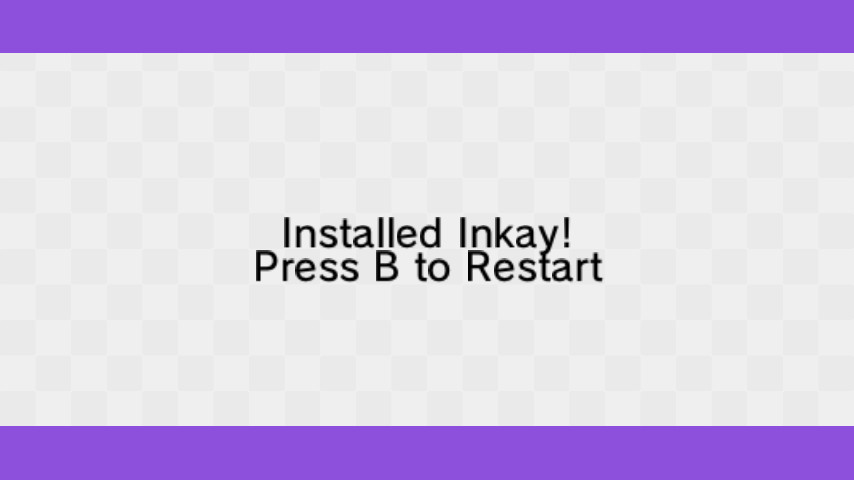
  3. Install and Reboot: Select your environment, press A to install, then press B to reboot.
    Installed Inkay Press B to Restart Confirmation prompt shown before rebooting.

Verification Check

After rebooting, check the top-left banner on the HOME Menu. It should say: Using Pretendo Network (Nico Christmann).

In-Game Plugin Menu

Open the Plugin Menu anywhere on your Wii U by pressing L + + - or +. Select Inkay (Nico Christmann) to manage connection settings or reset your WaraWara Plaza.

Step 4

Verify & Get Approved on Wii U Chat

Wii U Chat requires quick manual approval to whitelist your PNID.

  1. Launch Wii U Chat: Open Wii U Chat from the HOME Menu while running the custom relay.
  2. Send Handshake: Connecting sends your PNID to the pending queue for verification.
  3. Start Calling: Once approved by an admin, your account is whitelisted and calling will work permanently.

Expected Error: 102-2482

You will receive an error code 102-2482 when sending your handshake—this is completely normal! It simply means your PNID has been successfully sent to the queue. You need to wait to be whitelisted by an admin to even use Wii U Chat.

Check Approval Status

Check your approval status or ask for verification in the Revivetendo Discord server.

Juxtaposition Miiverse

Nico Christmann also hosts custom instances of Juxtaposition for Miiverse communities.

Web Access

Browse handwritten posts, screenshots, and game communities directly from any browser.

WaraWara Plaza

Mii avatars, drawings, and popular posts load on your TV screen automatically when booting Aroma.

Separate Accounts

Your posts, communities, and followers on Juxt and Nico Christmann's servers remain separate across platforms.

Frequently Asked Questions

Quick answers to common questions about the relay.

Opening Wii U Chat sends your PNID to the server. This adds your ID to the pending list so an admin can approve your account.

Games that aren't relayed pass directly through to official Pretendo (pretendo.network). You don't need to switch plugins to play normal Pretendo games.

Open the Plugin Menu (L + + - or +), select Inkay (Nico Christmann), and choose Reset WaraWara Plaza.

Yes. However, downloading official Pretendo from GitHub too often in a short time can trigger a temporary GitHub rate limit. Downloading Nico's custom build does not have rate limits.